
You can hide the like count on any Instagram post after it is live: open the post, tap the three dots, and choose “Hide like count to others”. On Facebook, switch on the reaction preference for your own posts. Hiding removes the number from view, not the likes themselves, and you still see your own total. Below you will find the steps for both platforms, what other people can still see, and how to decide which posts to hide.
TL;DR
- On Instagram, hiding is a per-post setting. Tap the three-dot menu on the post and choose “Hide like count to others” (app) or “Hide like count” (computer). You can reverse it at any time.
- On Facebook, go to Settings & privacy > Settings > Reaction Preferences and turn on “On Your Posts”.
- Hiding only removes the total. Names in the “Liked by… and others” line and the likes list stay tappable, and you always see your own total.
- Instagram has described hiding likes as a display choice, and Hootsuite reports that neither hiding option officially affects ranking.
- Choose the posts where a clean look helps you, and judge success by saves, comments, shares and views as well as likes.
Table of Contents
- How to hide the like count on a post you have already published
- How to hide the count before you publish
- How to hide reaction counts on Facebook
- What people can and cannot see once the count is hidden
- Does hiding the count change your reach?
- When hiding the count makes sense
- What to look at instead of the like total
- Perspective
- Choosing engagement that fits how you present your posts
- A simple routine for each new post
- FAQ
- Sources
How to hide the like count on a post you have already published
This is the situation most people searching this are in: the post is up, the likes have arrived, and you would rather the audience saw the post than a number. The steps below follow the Technobezz walkthrough.
On the Instagram app (iPhone and Android)
- Open your profile and tap the post.
- Tap the three-dot menu in the top-right corner of the post.
- Select Hide like count to others.
The number disappears for everyone else straight away. You still see the total on your own post.
On a computer
- Open the post in your browser.
- Click the three dots in the top-right corner.
- Choose Hide like count.
Changing your mind
The setting is reversible. Follow the same steps and the option now reads “Unhide like count”. Nothing is lost when you switch back and forth, because the likes were never removed.
One post at a time
Hiding likes on Instagram is a per-post setting, and there is no bulk option to do it across your whole grid in one go. If you run a campaign with several posts, build a short routine: publish, hide, then move to the next.
How to hide the count before you publish
If you already know a post will carry a boost, you can skip the extra step afterwards. On the final sharing screen in the app, tap More options (on desktop it is Advanced settings) and switch on Hide like counts on this post (app) or Hide like and view counts on this post (computer), as Technobezz describes. The post then goes live with the number already hidden.
How to hide reaction counts on Facebook
Facebook works differently. Rather than a menu on each post, it uses an account-wide preference. According to How-To Geek’s guide, you go to Settings & privacy > Settings > Reaction Preferences, then use two independent toggles:
- On Your Posts hides reaction counts on what you post.
- On Posts from Others hides them on posts from other people in your own feed.
Meta’s UK Safety Centre confirms that everyone on Instagram and Facebook can hide like counts on their own posts and on posts in their Feed.
Where Facebook still shows the numbers
Two limits matter if you promote through a business Page or Group:
- Facebook still shows counts in places such as Marketplace and Reels even with the preference on.
- The setting applies to timeline and Feed content, so it may not cover posts created in Groups, Events or Pages.
If your Facebook activity is mostly through a Page, check how a recent post looks from a logged-out view or a friend’s account, so you know what your audience sees.
What people can and cannot see once the count is hidden
A hidden count is not an invisible post. Knowing exactly what stays on show helps you plan.
| Who | What they see | What stays hidden |
|---|---|---|
| Your audience on Instagram | A line such as “Liked by [name] and others”, comments and comment count | The total number of likes |
| Someone who taps “and others” | The list of accounts that liked the post | The total number |
| You, the account owner | The total and the likes list | Nothing |
| Facebook viewers | Individual reactions, by tapping the reactions area | The total number of reactions |
The BBC reported that users with the feature enabled see the username of a follower who liked the post, “and others”, instead of a number. Creator Tribune adds that viewers can tap through to the full list of accounts that liked the post. On Facebook, individual reactions remain accessible by tapping the reactions area.
One technical detail is useful if you report on performance with outside tools. When a creator hides likes after a post has been public, likes received after that point are not available through the API and can only be seen by the original creator. Your own Instagram Insights is the place to read the true picture.
Three different settings, not one
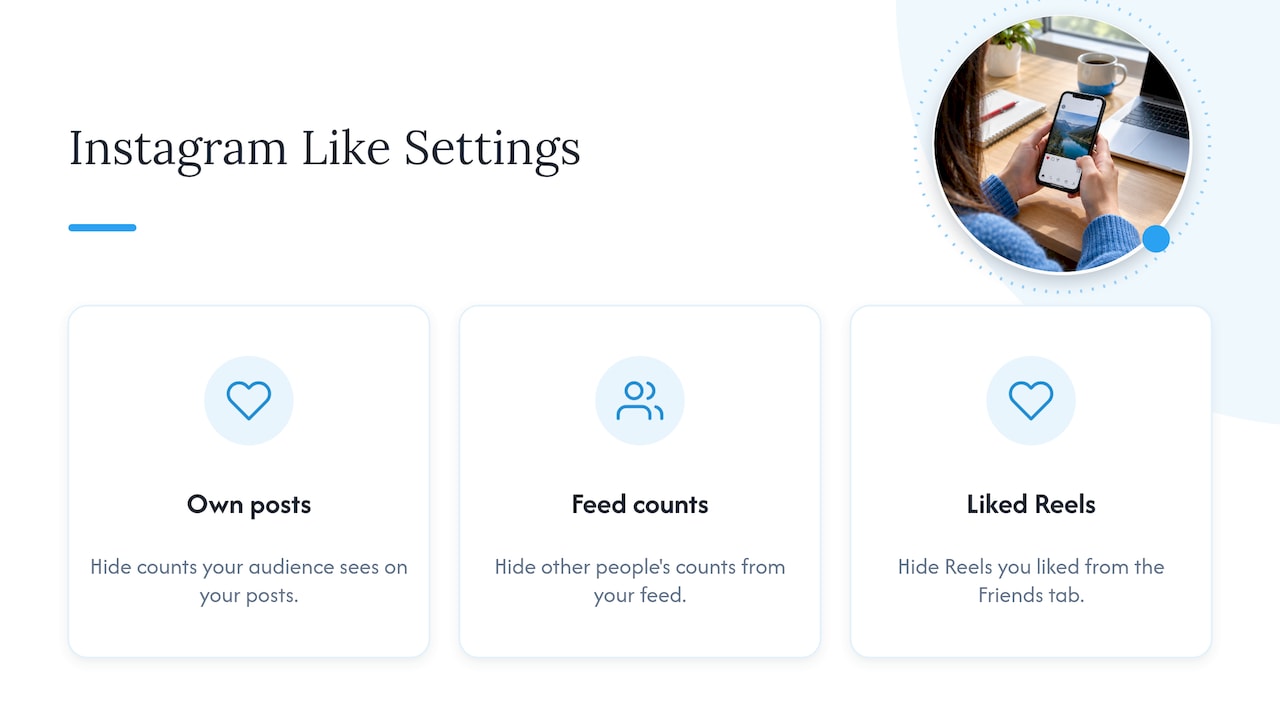
It helps to know that “hide likes” on Instagram covers more than one control. Creator Tribune describes three separate settings: hiding the count on your own posts, hiding other people’s counts from your feed, and hiding the Reels you liked from the Friends tab. Everything in this article is about the first: what your audience sees on your posts. If you also want a calmer feed for yourself, that is a separate switch in your privacy settings.
Does hiding the count change your reach?
The short answer from the sources is no. Hiding the count changes what viewers see, not what the platform measures.
- Instagram’s own line in 2021 was that the feature aimed to “depressurize people’s experience”, and the BBC reported that the algorithm still takes the number of likes into account when promoting posts, alongside factors such as what the user follows or engages with.
- Hootsuite’s guide notes that neither option officially impacts ranking: hidden likes still count as likes to the app.
- Outfy reports that hiding likes does not hurt reach because Instagram still counts likes, comments, shares and saves.
So you can hide a post’s number without worrying that you have switched something off. The likes remain attached to the post and keep being counted.
There is also useful research on audience behaviour. A Dutch university study found no observed change in liking behaviour after the like counter was hidden, and influencers were not perceived differently across high, low or hidden-like conditions. In other words, viewers react to the content in front of them far more than to a number under it.
For a deeper look at how likes sit alongside other signals, we have written about whether paid likes affect reach and what actually moves reach.
When hiding the count makes sense
There is no rule that every post should be hidden. Think about the job each post does.
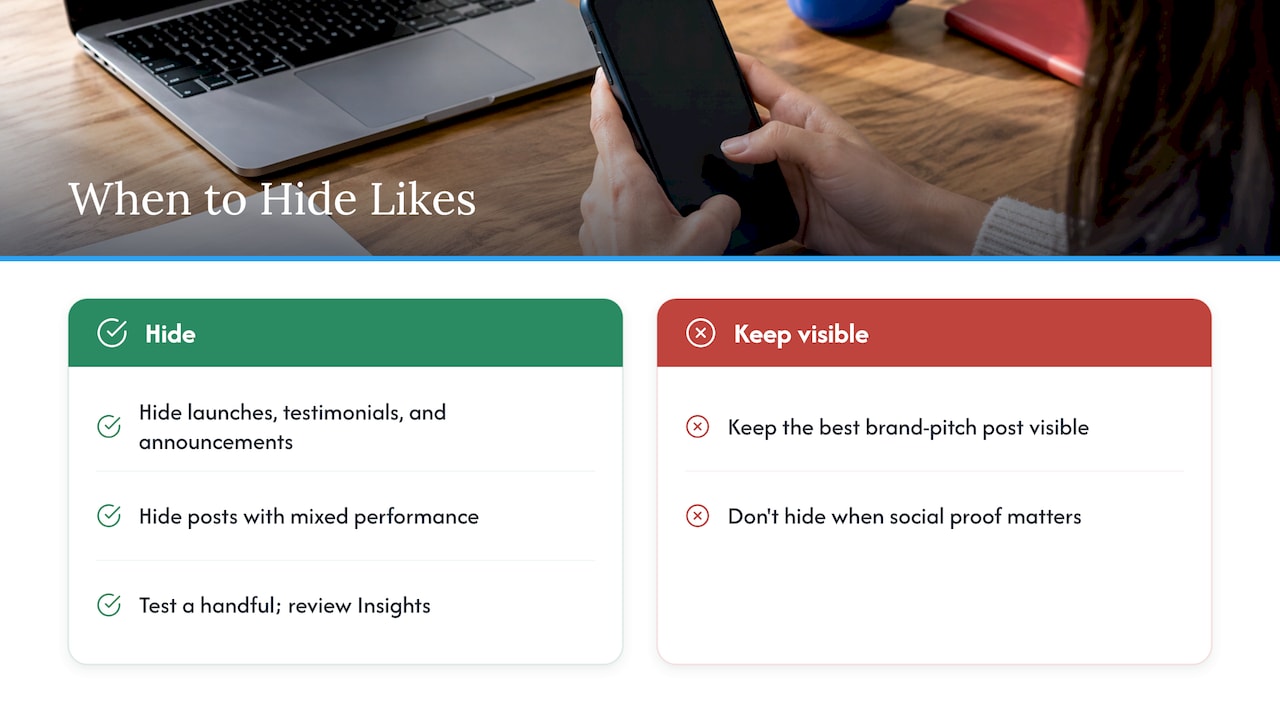
Hide it when the number is not the message. A product launch, a testimonial, an announcement or a portfolio piece should lead with the picture and caption. A hidden count keeps the focus there.
Hide it when you are mixing posts of different sizes. If a Reel has performed far above your usual post, or a new photo is still warming up, hiding the numbers keeps your grid looking consistent for first-time visitors.
Leave it visible when social proof is the point. Some creators feel that visible likes help with social proof, because people may trust or interact more with popular posts. If you are pitching to brands, a visible count on your best post can work in your favour.
Hide selectively, then review. Try hiding on a handful of posts, then compare saves, comments and profile visits in Insights over a few weeks. Because the setting is reversible, you lose nothing by experimenting.
What to look at instead of the like total
With the number tucked away, your attention naturally moves to richer signals. Here is a short checklist for each post:
- Views and reach. Did the post get in front of new people? Our piece on Instagram views versus likes explains how the two differ.
- Saves and shares. These show people found the post worth keeping or passing on.
- Comments. Comments and the comment count stay visible when likes are hidden, so they carry more weight on the page.
- Profile visits and follows. The real test of whether a post led someone to your account. See followers versus likes.
- Engagement ratio. Compare interactions with your audience size using our follower to engagement ratio benchmarks.
If you want a wider marketing view of how to maximise organic reach and judge content beyond visible like totals, that is a good next step once your hiding routine is in place.
Perspective
We have worked with UK creators and small businesses since 2013, and the question behind this search is a sensible one: how do I present my post cleanly once it has some momentum? Hiding the count is a tidy answer, and the tools to do it sit in your own settings.
Our view is simple. Likes are one signal among many, and the people who do best treat them as a starting point. A post that opens with healthy engagement gives new viewers something to stop for, and the content, caption and consistency then do the rest. That is why our packages are designed around real, authentic engagement delivered without needing your password, and why we pair them with advice on what to do next.
Whether you show or hide the number is a presentation decision. Instagram has framed it as a display choice, and the reach data points the same way. Use it as you would a crop or a caption edit: where it helps the post look the way you want.
Irwin Lee
Choosing engagement that fits how you present your posts
If you are planning posts with extra engagement behind them, Greedier Social Media offers UK-targeted, password-free packages designed to be delivered quickly. On Instagram, likes are priced at £0.99 to £189.95 one-off, followers at £1.99 to £229.99 one-off, and video views at £0.59 to £54.99 one-off. Our auto likes plan starts from £9.99 per month, and auto followers run from £15.00 to £100.00 per month.

You can browse the full range on our Instagram packages page, or start from the Greedier Social Media homepage. For Facebook, Page likes and followers are priced at £3.99 to £149.99 one-off, and post likes at £3.99 to £79.99, on our Facebook page. Support is UK-based, so if you have a question about timing or which package suits a post, you can ask us.
A simple routine for each new post
Putting it together, here is a routine that takes under a minute per post:
- Decide whether the post is a “look at this” post or a “social proof” post.
- If it is the first kind, turn on the hide setting on the sharing screen under More options, or open the three-dot menu after publishing.
- Check the post from a second account to confirm what viewers see: the “Liked by… and others” line, the comments and the likes list.
- After a few days, open Insights and read views, saves, shares and profile visits.
- Unhide the count later if the post has become a showcase piece.
For longer-term growth, our guide on how to increase your Instagram likes organically pairs well with this routine, and our note on Instagram’s changes to like counts gives background on how the platform has treated them over time.
FAQ
Can I hide the like count after a post has been published?
Yes. Open the post, tap the three-dot menu, and choose “Hide like count to others” in the app or “Hide like count” on a computer. The count disappears for others immediately. You can unhide it at any time through the same menu.
Does hiding likes remove them or hurt my reach?
No. Hiding only removes the visible number, and the likes stay on the post. Hootsuite’s guide says neither hiding option officially affects ranking, and you still see your own total.
Can I hide likes on all my Instagram posts at once?
Not with a single switch. Instagram treats it as a per-post setting, so you hide each post individually. To save time, turn on the hide option from the sharing screen as you publish new posts.
Can I hide like counts on Facebook posts?
Yes. Go to Settings & privacy > Settings > Reaction Preferences and turn on “On Your Posts”. The counts may still appear in places such as Marketplace and Reels, and viewers can still tap to see who reacted.
Will people still see who liked my post?
Yes. On Instagram, viewers see a line such as “Liked by [name] and others” and can tap “and others” to see the list. Only the total is hidden, and you can always see the total yourself.
Sources
- How to Hide Like Counts on Instagram (Technobezz)
- How to Hide Likes From Instagram: A Step-by-Step Guide
- How to Hide (or Show) Like Counts on Facebook (How-To Geek)
- Meta UK Safety Centre: Tips to protect your mental health
- Hide the number of reactions (Facebook)
- Instagram lets users hide likes to reduce social media pressure (BBC News)
- How to Hide Likes on Instagram Without Hiding Who Liked It (Creator Tribune)
- Instagram Metrics Differences: Complete Overview (Socialinsider)
- Instagram likes: Why they matter (Hootsuite)
- How to Hide Likes on Instagram Post and Reels (Outfy)
- Study on hidden like counts and influencer perception (Leiden University)
- How to Maximize Organic Reach for Your Business